

A quick question under an article, “Was this helpful?” or “Which topic next?”, gets far more answers than a form. Many poll tools load from another company’s servers, though, and some need visitors to sign in.
Add the poll
- Install the free SoftIcon Poll and activate it.
- Add the Poll block. Pick a ready-made poll, such as Yes / No or Rating, or start empty.
- Write the question and the answers right in the block.
- Publish.
Votes are saved on your own site. There is no account to create and no outside service, and the poll works on cached pages.
Results, once per visitor, and a closing date
- Show results after voting, always, only when the poll closes, or never.
- Each visitor votes once. The browser and the IP address are checked.
- Set an End date and the poll closes on its own.
Pictures as answers
Click Add image next to an answer to let people choose what they see, for example a layout or a product color.
Vote on the Poll demos to see each option at work.
Categories
Related Posts
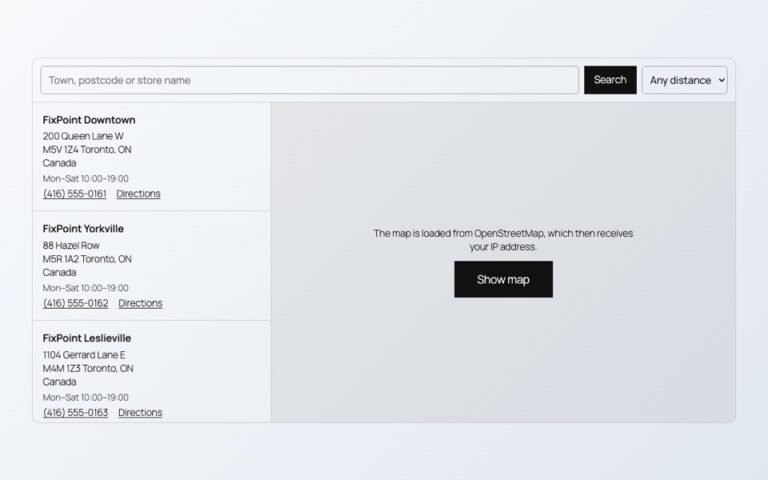
Maps, videos and document viewers are heavy. Loaded only when needed, they cost almost nothing…
Read More
admin

Visitors should not need Office or a download to read a handbook or a price…
Read More
admin
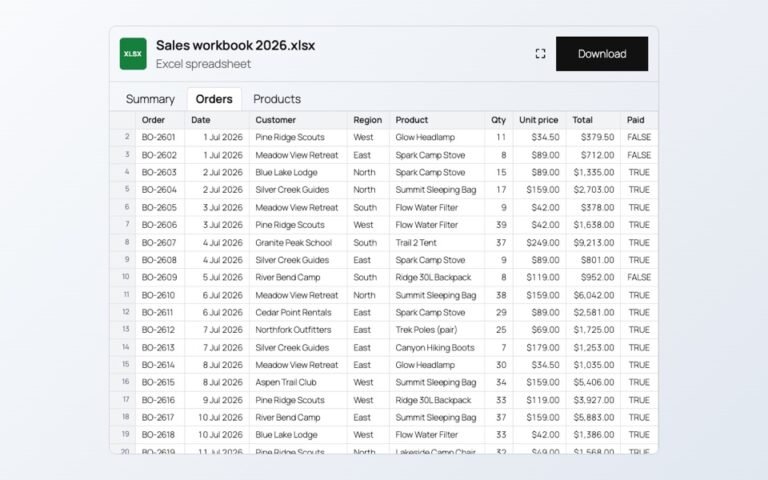
Changing prices one product at a time is slow. In a spreadsheet you can paste…
Read More
admin
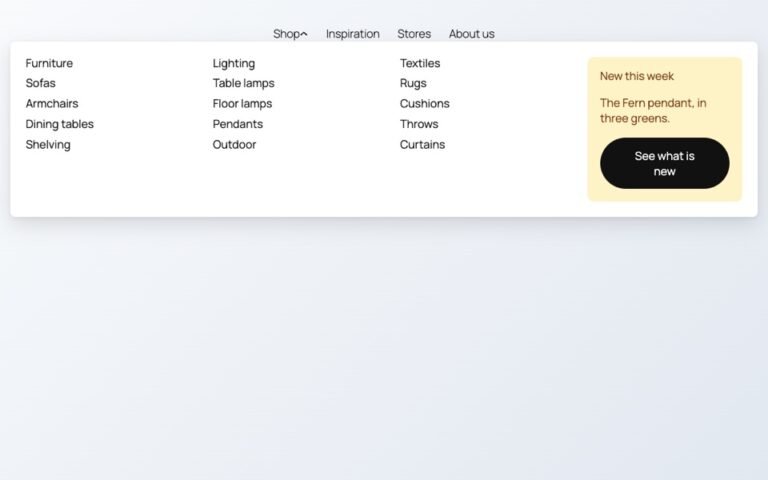
Block themes like Twenty Twenty-Five have no mega menu built in. Here is how to…
Read More
admin

When an article ends, readers either leave or read on. A short list of related…
Read More
admin

Photos show one side of a product. A 3D model shows every side, and on…
Read More