

A shop or a service business soon has more pages than a simple dropdown can hold. A mega menu opens a large panel with columns, headings, pictures and buttons, so visitors see everything at once.
Add a mega menu item
- Install the free SoftIcon Mega Menu and activate it.
- Open Appearance → Editor and edit the header.
- In the Navigation block, add a Mega Menu item and write its label.
- Click Create panel. The panel is a template part, so you build it in the Site Editor with columns, lists, images and buttons.
- Save.
Choose how it opens
- Hover opens the panel when the mouse is over the item. Touch screens and keyboards always open it with a tap or Enter.
- Click waits for a click, which suits menus with a link on the item itself.
- Width can follow your theme (Content or Wide), span the whole screen (Full), or be a set number of pixels.
On phones
Inside the Navigation block’s phone menu, the panel opens under its item. If the item also has a link, you can send phone users straight to that page instead.
Open the shop menu demo and move the mouse over Shop to see one in action.
Categories
Related Posts

When an article ends, readers either leave or read on. A short list of related…
Read More
admin

A landing page needs a hero, features, prices and answers. Ready-made sections give you all…
Read More
admin

Visitors should not need Office or a download to read a handbook or a price…
Read More
admin

A PDF link makes people download a file. A flipbook lets them read the catalog…
Read More
admin
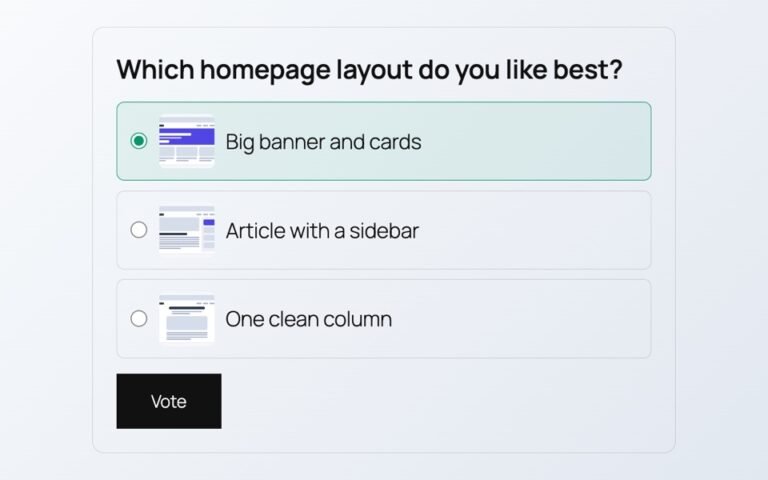
Polls from outside services add scripts, cookies and sign-ups. Here is a poll whose votes…
Read More
admin
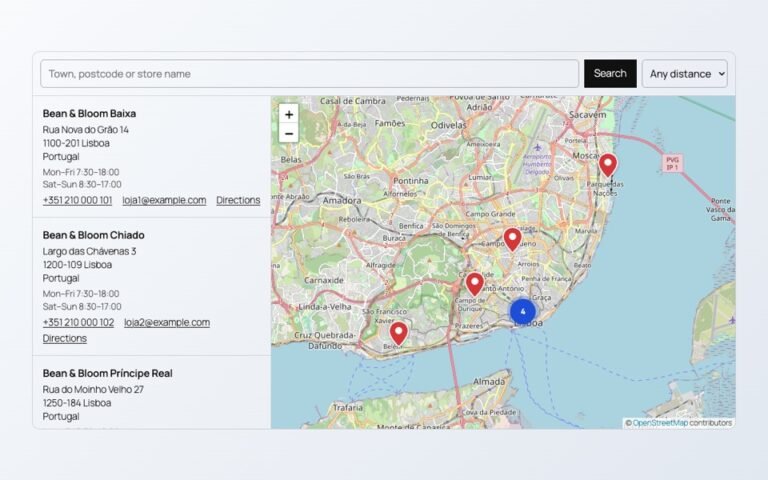
A store map does not need a Google Cloud account or a billing card. Here…
Read More