
Bring many stores at once from Excel, Google Sheets or another store locator, and save them back to a file.
Prepare the file
- One store per row, with the column names in the first row.
- Names the block recognises on its own include name, address, city (or town), postcode (or zip), country, phone, email, website, hours, lat (or latitude), lng (or lon, longitude) and image. You can match any other column by hand.
- Commas or semicolons both work as separators, and coordinates with a decimal comma (51,4545) are read too.
- In Excel, save as CSV UTF-8 so that accents stay right. In Google Sheets, use File → Download → Comma-separated values.
Import
- Select the block and press Import CSV (in the empty block or in the Stores panel).
- Press Choose CSV file and pick your file.
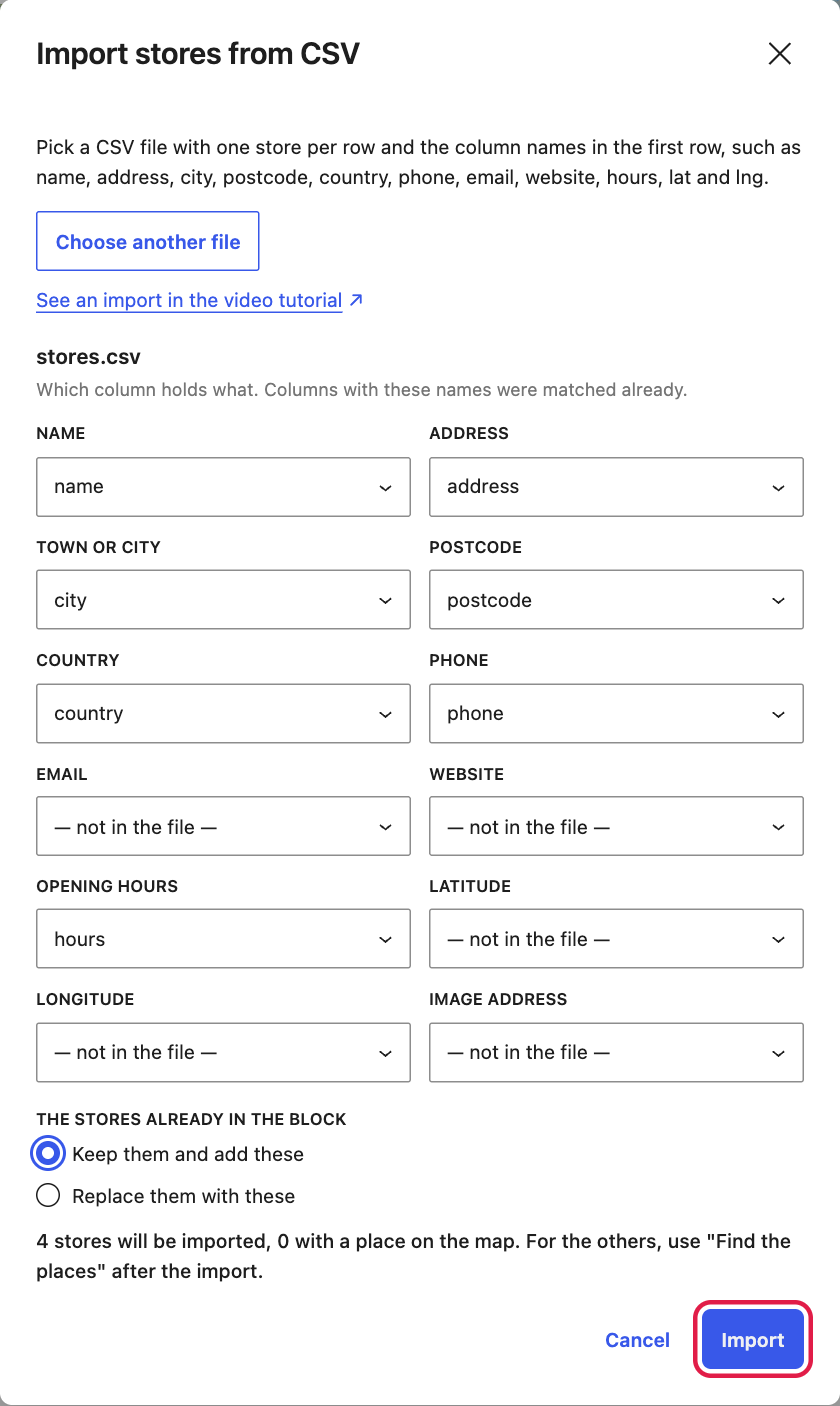
- Check which column holds what. Each field has a menu with your file’s columns; pick — not in the file — for a field you do not have.
- If the block has stores already, choose Keep them and add these or Replace them with these.
- Read the line that says how many stores will be imported and how many have a place on the map, then press Import.
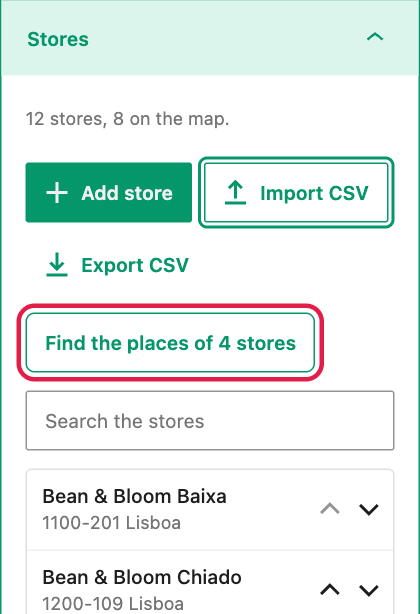
Find the places of stores without coordinates
If your file has no latitude and longitude, the Stores panel shows a Find the places of … stores button after the import. Press it and leave the page open: the free OpenStreetMap search allows about one store a second, so 100 stores take a few minutes. Stop ends it early.
- An address that was not found is marked Not on the map. Open the store and fix the address, or click the map where it is.
- A store found without its postcode is marked Check the pin: its pin may be on the wrong street, so check it on the map.
Export
Press Export CSV in the Stores panel. You get stores.csv with every store and its coordinates. Open it in a spreadsheet, change it, and import it again with Replace them with these. It is also a simple way to copy all your stores to another page.
Limits
- A block holds up to 500 stores. Extra rows are left out, and the import tells you how many.
- Rows without a name, an address and a town are skipped.
- Pictures from an image column must be full web addresses (https://…).