
Choose where the list sits and how tall the map is.
- Select the block and open the Layout and size panel.
- Pick a Layout: List left, List right, List below or Map only.
- Set Map height (px), from 240 to 900.
- For a bigger map, choose Wide width or Full width in the block toolbar.

What visitors see
- List left and List right: the list sits next to the map and scrolls within the map’s height.
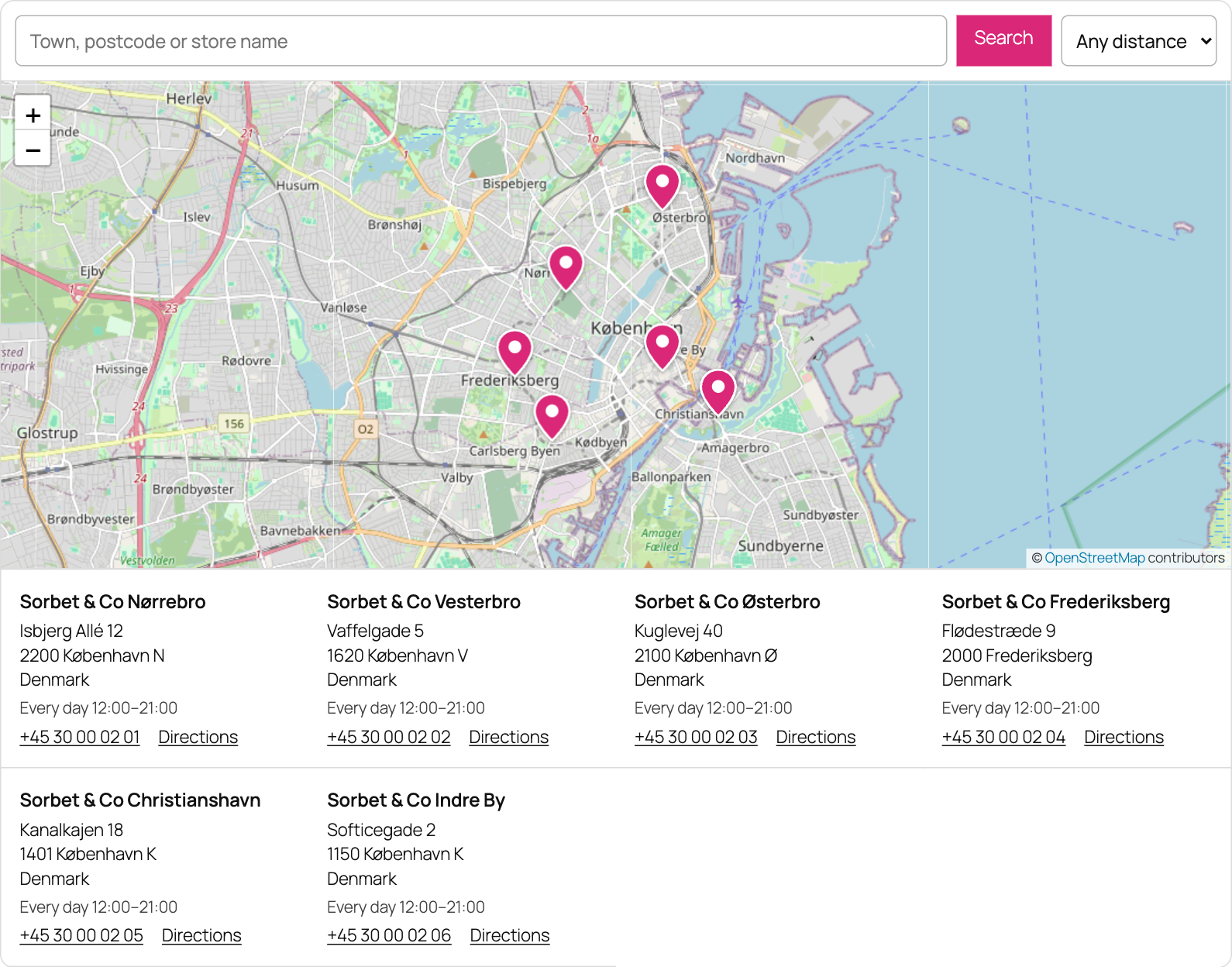
- List below: the stores sit under the map as cards side by side.
- Map only: only the map shows, and a click on a marker shows the store in a popup. The list stays in the page for search engines and for visitors without JavaScript.
Good to know
- On a phone, or when the block is narrower than 600 px (for example in a sidebar column), the map is always above the list.
- The map is never taller than 70% of the screen, so phones can still scroll the page.
- The mouse wheel scrolls the page past the map. It zooms the map only after the visitor clicks on it.